
A software tutorial can look smoother after an edit and become less useful at the same time. The cursor glides instead of hesitating, pauses disappear, and the interface feels brisk. Then a viewer reaches the same screen and cannot reproduce the result because the polished version skipped the instant when a menu opened or a toggle changed.
The missing material is not filler. It is state evidence. A tutorial works when a viewer can reconstruct the interface before an action, observe the action, and recognise the new state afterward. Editing should compress waiting without erasing that chain.
Mark Every Control State Before the Transformation
Watch the untouched recording once and list each state change that affects the task. Include tabs, expanded menus, selected tools, enabled switches, changed values, confirmation messages, and the resulting canvas or file. Give each checkpoint a short identifier such as C04-open or C05-enabled.
Capture a frame immediately before and after the action. The pair should show what changed without depending on narration. If the interface uses a subtle highlight, note its location and colour. If a save action has no visible confirmation, record the file name or destination that proves it happened.
Separate required states from orientation states. A breadcrumb that tells viewers which panel they are in may be necessary even though nobody clicks it. A decorative cursor circle may be helpful but is not evidence. The distinction prevents the edit from preserving flourishes while removing the path.
Separate Decorative Motion from Instructional Motion
Instructional motion changes or identifies a state: a pointer travels to a control, a slider moves, a panel opens, or a preview updates. Decorative motion changes presentation: a zoom eases into the screen, a background shifts, or a transition hides a cut. Both can improve attention, but only the first category carries task meaning.
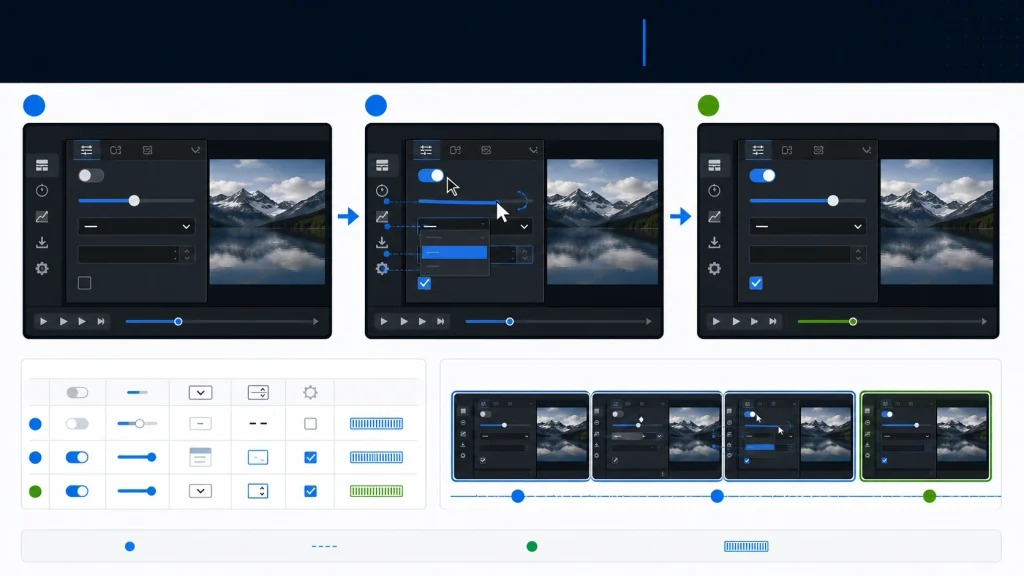
Compare source and proposed cut with the sound disabled. For every required checkpoint, ask three questions: can the control be located, can the action be seen, and can the resulting state be verified? A fast edit passes only if all three remain answerable at normal playback speed.
| Moment | Evidence to preserve | Unsafe compression |
| Before action | Control and current value | Cut begins after the pointer arrives |
| During action | Click, drag, or typed input | Transition covers the change |
| After action | New value or visible result | Next step begins before confirmation |
Do not treat a voice-over as a substitute. “Turn on stabilization” does not show which of several switches the narrator means. Narration can explain why; the picture still needs to prove where and what.
Keyboard shortcuts require their own evidence. A cursor may never touch the command that changes the screen, so add a brief key overlay or an ordinary caption naming the shortcut. Verify the platform and application version before publication. A shortcut copied from another operating system can make a visually intact tutorial impossible to follow.
Generate a Candidate Around One Protected Task
AIVideoEditor.me presents prompt editing as an upload, instruction, generation, and review workflow. The official guidance recommends naming the requested change and the details that should remain consistent, while cautioning that output is not guaranteed to preserve every frame. A short tutorial segment with an explicit state map is therefore safer than asking for a broad transformation of the entire lesson.
Choose one task boundary, such as opening settings, changing a value, and confirming the result. Write the prompt so the aesthetic request cannot be confused with the protected procedure: “Make this segment visually calmer and keep the interface layout, cursor path, menu sequence, control labels, selected value, and confirmation frame unchanged.”
Use an AI video editor to create the comparison candidate, then keep the original clip open beside it. Save the prompt verbatim and name the candidate with the source version. The output is a proposal for review, not evidence that the steps survived.
Only one editorial variable should be under test. If the request changes pacing, colour treatment, crop, cursor emphasis, and background at once, the team will not know which change hid C05. Make a separate candidate when a second treatment is worth evaluating.
AIVideoEditor.me also lists generation routes beyond existing-footage editing. Those routes may be useful for illustrative cutaways, but a generated interface should never replace a factual screen recording. The real product build remains the authority for labels, order, and control behaviour.
Run the Checksum Without Reading the Script
Give the state list and both clips to a reviewer who has not read the narration. The reviewer should locate each C-code in order and write the visible before-and-after state. This is a control-state checksum: every required input must produce the expected visible result.
Use four verdicts. Exact means the state and evidence match. Repositioned means the state survives but appears at a different time. Ambiguous means the reviewer sees activity but cannot identify the value or result. Missing means the checkpoint cannot be found. Only exact and intentionally repositioned states can pass.
Check crop and mobile delivery separately. A desktop review may show the whole side panel while a vertical crop removes the control name. Pause on the smallest text and the widest open menu. If either requires zooming beyond the delivery size, repair the composition rather than assuming viewers will enlarge it.
Narration and captions return only after the silent checksum. Confirm that each spoken instruction points to the correct visible state and that caption boxes do not cover the control. Timing changes can make accurate words describe the previous or next action, which is a procedural error even when the sentence is flawless.
Repeat the checksum with the playback controls hidden. Editors often use the progress bar to anticipate where a change occurs, but viewers may see the clip embedded without that cue. The state transition itself should announce the result through the interface, not through knowledge of the editor’s timeline.

Ship the Tutorial with a Recovery Note
The release folder should contain the untouched recording, approved candidate, state map, exact prompt, checksum, software version, and publication crop. Add a recovery note listing the source timestamps for every compressed pause. If a user reports that a step is missing, the editor can restore evidence without rebuilding the lesson.
Teams that edit videos online should keep the generated asset in a different lane from the factual interface capture. AIVideoEditor.me can help explore a calmer or more focused presentation, but the source determines whether the tutorial is reproducible.
Recheck the tutorial when the software interface changes. A correct video can become misleading after a button moves or a label changes. Date the review, identify the build, and withdraw the asset when its state map no longer matches the current product.
If only one control moved, replace the affected segment and rerun the downstream checkpoints. Do not assume the rest of the sequence still aligns: a longer menu opening can shift narration, captions, and cursor timing several steps later. The recovery note shows where the factual repair starts, while the checksum reveals how far its effects travel.
Smooth editing earns approval only after every required control state can be found, understood, and connected to its result. The checksum keeps that standard visible. It allows a tutorial to become shorter or calmer without hiding the small interface moments that make the task possible.